

Open Grok Imagine on grok.com or in the Grok app, write a prompt with subject, setting, framing, and style to generate an image, then select that image and add a short motion brief to create an image-to-video clip. Every output carries a mandatory Grok watermark, and resolution is tier-gated, so confirm caps on grok.com before a big batch.
The short version: open Grok Imagine on grok.com or in the Grok app, type a prompt that names the subject, setting, framing, and style to create an image, then select that image and add a short motion brief to turn it into a video. This guide walks through both steps with concrete prompts, plus the three things people forget to check first: the mandatory watermark, the tier-gated resolution cap, and whether the feature is even available on your plan right now.
Grok Imagine is xAI's image and video product, built on the Aurora line. You reach it on grok.com/imagine, inside the Grok apps, and through the xAI API. This article is about the consumer surface, so it assumes you are clicking buttons in Grok rather than writing API calls. If you want the developer path instead, that is a different decision covered at the end.
What you need before you start
Three things decide whether this works on your first try, and none of them are the prompt.
First, account access. Grok Imagine has shown up on the free tier (named Personal Workspace) and on paid plans, but the free image and video caps conflict across sources and have changed more than once. Do not trust a number you read in a blog, including this one. Sign into the account you plan to use, open the Imagine surface, and read the usage message on screen. That message is the only thing that tells you what you can generate today.
Second, the surface itself. Grok Imagine appears on grok.com, in the iOS and Android apps, and through X surfaces tied to X Premium. The controls are not identical across all of them. A guide can describe the workflow, but your own screen tells you which buttons exist. If you do not see an image or video option, you are either on the wrong surface or signed into the wrong account.
Third, your intent for the output. Grok Imagine is a creative drafting tool. It is excellent for concept images, social drafts, mood pieces, and short motion clips. It is the wrong tool for anything that needs to be factually real: a genuine product screenshot, a real person, a real event, or a current user interface. For those, use a real capture or licensed media. Decide which bucket your task is in before you write a single word of prompt.
If you are still weighing whether a paid plan is worth it just for Imagine, read the SuperGrok plans and pricing guide before upgrading. Imagine access alone is rarely the whole reason to pay.
Step 1: Plan the prompt before you type it
The single biggest mistake is treating the prompt box like a search bar. "Cool cyberpunk city" gives the model almost nothing to work with, so it fills the gaps with whatever is statistically average, and average is exactly what makes an image look generic.
A good prompt answers the questions a photographer or art director would ask. Plan these five parts in your head, or jot them down, before you type:
- Subject: the main thing in the frame. Be specific about what it is and its condition.
- Setting: where it is, the time of day, the weather, and the background.
- Framing: the camera angle, distance, and lens feel. Close-up, wide, low angle, eye level.
- Style: realistic photo, editorial, product shot, illustration, cinematic, diagram.
- Constraints: what must not appear. Text, logos, extra limbs, distorted shapes.
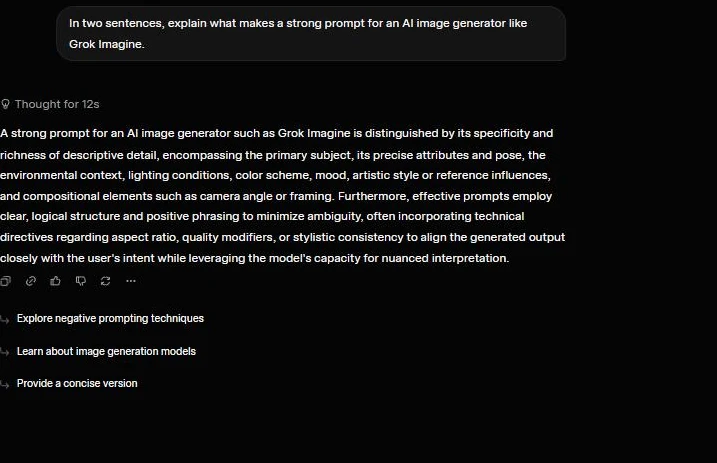
Here is the difference in practice. Weak prompt:
A coffee shop.
Planned prompt:
Realistic photo of a quiet independent coffee shop interior in the early morning. Warm window light from the left, one barista wiping the counter, steam rising from a fresh cup on the bar. Eye-level framing, 35mm lens feel, shallow depth of field. No text, no visible brand logos, no people seated in the background. Leave clean space on the right for a headline.
The planned version is longer, but every clause is doing a job. The model now knows the subject, the light, the action, the lens, what to exclude, and even that you want negative space for layout. That last detail matters if the image is going to become a blog hero or a thumbnail.
A useful habit: write the prompt as if you are briefing a freelancer who cannot ask follow-up questions. If a brief that thin would confuse a human, it will confuse the model too.
Step 2: Generate the image and read the result honestly
With the prompt planned, the actual generation is simple. Open Grok Imagine, paste or type the prompt into the box, choose the image option, set the aspect ratio if the surface offers one, and generate.
When the results come back, resist the urge to immediately regenerate. Look at what you actually got and name the gap between it and what you wanted. There is almost always one specific problem rather than a vague "it is not quite right." Common ones:
- The scene is too busy. The model added objects you never asked for.
- The lighting is flat. You described mood but not a light source or direction.
- There is garbled text on a sign or screen. You forgot to exclude text.
- The style drifted. Too many adjectives pulled it toward a generic illustration.
Pick the single closest result and keep it. You will use it as the anchor for the next step, and a good still is far easier to animate than a mediocre one. If nothing is close, change one variable in the prompt and try again. Changing five things at once means you will not know which change helped.
A practical note on aspect ratio: decide it before you generate, not after. If you need a vertical clip for a phone-first feed, generate a vertical image. Cropping a horizontal frame down to vertical later usually destroys the composition you liked.
Step 3: Turn the image into a short video
This is where Grok Imagine earns its keep. Once you have a still you like, you can animate it. The key mental shift is that image-to-video is not "generate a new scene." It is "keep this scene and add motion." Your job is to write a motion brief, not a fresh description.
A still prompt describes a frozen moment. A motion brief describes what changes over the next few seconds and, just as important, what must stay the same. If you only describe movement and forget stability, the model is free to morph the whole scene, and it often will.
Select your image inside Grok Imagine, choose the video or animate option, and write a brief like this:
Use this image as the first frame. Keep the room layout, the barista, the colors, and the camera angle consistent. Add only a slow camera push-in and gentle rising steam from the cup. No new people, no text, no warping of objects, no fast cuts.
Notice the structure. It names the first frame, lists what to preserve, specifies exactly one camera move and one motion detail, and then excludes the things that commonly go wrong. That is a controlled animation rather than a roll of the dice.
If you want a fully described video instead of animating a still, you can write a text-to-video prompt. It needs everything an image prompt needs plus the motion and an explicit note about what stays constant:
Five-second realistic clip. Opening frame: a ceramic cup on a clean wooden desk beside a closed notebook. Steam rises slowly while the camera makes a gentle push-in. The cup, notebook, and desk stay consistent throughout. Soft morning window light, calm pacing, no text overlays, no extra hands, no object flicker. Final frame shows the cup and notebook sharply in focus.
The trade-off is real. Image-to-video gives you control of the exact starting frame and tighter consistency. Text-to-video gives the model more freedom, which is good for exploration and risky for a frame you care about. For most practical workflows, generating a strong image first and then animating it produces steadier results.
Step 4: Check the watermark and resolution cap
Two output facts catch people out, so check them deliberately rather than discovering them after you publish.
Every Grok Imagine output carries a mandatory Grok watermark. This is not optional and you may not remove or obscure it. Removing the provenance mark is prohibited under xAI's terms. The practical consequence is layout: plan your crop, your text placement, and your safe area so the watermark stays visible and intact. If your design depends on a perfectly clean corner where the watermark sits, change the design, not the watermark.
Resolution is tier-gated. Grok Imagine can produce 720p, but once you hit the 720p cap for your tier, it falls back to 480p. So a clip that looks crisp in one session can come out softer later in the same day if you have used up your 720p allowance. If a specific video needs to be 720p, check your remaining allowance on grok.com before you generate it, and generate the high-resolution version while you still have headroom rather than at the end of a long batch.
There is also a separate, age-gated path often referred to as spicy mode. It requires a qualifying paid plan plus 18+ age verification. Treat the exact gating as something to confirm on your own account rather than assume, and keep any adult-content work clearly within xAI's stated policy and age checks.
Step 5: Save your output and your prompt
When you have something usable, save more than the file. Save the prompt and a one-line note about what worked. This sounds fussy, but it is the difference between reproducing a good result next week and starting from scratch.
A simple save routine:
- Download the image or video at the resolution you actually got.
- Copy the full prompt into a notes file or a prompt library.
- Note the motion brief separately if you animated a still.
- Write one line on what you would change next time.
- If the output is editorial, label it as editorial so nobody later mistakes it for a real screenshot.
That last point is an editorial safety habit. A generated image that looks like a real Grok screen, a real plan table, or a real X setting can mislead a reader. Use real captures for product evidence and keep generated visuals clearly in the concept bucket.
For prompt-iteration discipline more broadly, the same principle behind testing your own task in the Grok vs ChatGPT, Claude, and Gemini comparison applies here: change one variable, observe the result, and keep a record so you are learning rather than guessing.
Worked examples by use case
Different jobs need different prompts. Here are four complete, copy-ready examples that follow the planning structure above.
Social creator, vertical clip
Image prompt:
Realistic vertical photo of a young creator at a tidy desk with a phone on a small stand and a laptop. Natural daylight from a window on the left, plants in the soft-focus background. Eye-level framing, shallow depth of field. No visible brand logos, no readable text on screens, calm and friendly mood.
Motion brief:
Use this image as the first frame. Keep the desk layout, the person, and the lighting consistent. Add a slow, steady camera push-in and a small natural head turn toward the camera. No new objects, no text, no fast movement.
Why it works: it fixes the format up front (vertical), keeps screens unreadable to avoid fake data, and animates with one camera move and one subtle action.
Product marketer, concept hero
Image prompt:
Editorial product image of a laptop, a phone, and a notebook arranged on a dark walnut desk, lit by soft directional light from the upper right. Slight overhead angle, crisp edges, realistic shadows. No text on the screens, no brand marks, clean negative space across the bottom third for a headline.
Why it works: it asks for a concept that represents a product moment without faking a real interface, and it reserves space for copy. Use this for a hero, not as proof of a real screen.
Teacher or explainer, simple diagram
Image prompt:
Clean educational illustration on a plain white background showing three simple stages left to right: idea, draft, revision. Minimal flat shapes, generous spacing, easy to read on a phone. No tiny labels, no dense chart, no decorative clutter.
Why it works: it asks for simplicity and excludes the small garbled text the model tends to add. You can place readable labels yourself afterward in a design tool.
Researcher, neutral scene
Image prompt:
Realistic photo of a person at a desk comparing a printed checklist against a laptop. The laptop screen is softly out of focus with no readable text. The checklist shows simple check marks only. Neutral daylight, realistic hands, no brand logos, no extra screens.
Why it works: it keeps private data out of frame and ties the visual to a clear, honest scenario.
Common mistakes and how to fix them
Most disappointing results come from a handful of repeat errors. Each has a direct fix.
- Prompt too vague. The output is bland because the model had to guess. Fix: add subject detail, a light source, a camera angle, and a use case.
- Too many adjectives. Stacking style words pulls the image toward generic. Fix: cut adjectives and describe real physical lighting and framing instead.
- Forgetting to exclude text. Signs and screens come out garbled. Fix: add "no text" and place real copy later in your design tool.
- Animating everything. The video morphs into a different scene. Fix: in the motion brief, list what stays the same and limit yourself to one camera move plus one moving element.
- Ignoring the resolution cap. A clip comes out at 480p unexpectedly. Fix: check your 720p allowance before the run and generate priority clips first.
- Treating a generated image as proof. An editorial visual gets mistaken for a real screenshot. Fix: use real captures for product evidence and label generated visuals as concepts.
- Uploading sensitive images. People drop in IDs, contracts, or private screens. Fix: blur or remove anything private, use mock data, and never upload material you do not have the right to use.
That privacy point deserves a moment. Before uploading any image to animate, ask what it contains. A child's face, a government ID, private messages, a home address, a medical document, or a client's unreleased product all mean do not upload unless you have clear rights and understand the terms. For account-level controls and how product surfaces differ, see the Grok on X data and privacy settings guide.
Verify availability for your plan
Because caps and feature access change and conflict across sources, the honest final step is to verify rather than assume. Do this on your own account, not from a third-party table.
A quick verification pass:
- Open grok.com/imagine or the Grok app while signed into your real account.
- Confirm the plan on that account is the one you think it is.
- Check whether image, video, and image-to-video options all appear.
- Read the visible usage message for image and video caps before a big batch.
- Note your 720p allowance if resolution matters for the project.
- If anything is missing, you are likely on the wrong surface or account.
Plan names are stable even when prices and caps are not. The free tier is Personal Workspace; the paid consumer tiers are SuperGrok and, above it, SuperGrok Heavy. Grok access through X is tied to X Premium and X Premium+. What each includes for Imagine specifically is exactly the kind of detail to confirm live. For the broader buying decision, the what is SuperGrok overview explains how the plans relate before you spend anything.
Consumer app versus the API
One last fork in the road. Everything above describes the consumer app. If you are building Imagine into your own product or automating generation, that is the xAI API instead, and it is a genuinely different decision.
Use the consumer app when you are testing ideas by hand, want quick visual feedback, and are creating drafts for yourself or a small team. Use the API when you need repeatable calls, logging, automation, and per-request cost control inside a product you are building.
The two are not the same subscription, and you should not reason about them as if they were. App access comes with your Grok plan; API use is billed per generation through xAI's developer pricing. For the catalog and the model identifiers, the xAI model docs are the source to open, and the Grok Imagine topic hub collects the consumer-side guides in one place.
Bottom line
Generating with Grok Imagine is a five-step loop: plan the prompt, generate the image, animate it with a motion brief, check the watermark and resolution cap, then save the output and the prompt. The prompt work is where quality comes from, the watermark and resolution checks are where surprises come from, and the availability check is where wasted time comes from.
Start on grok.com or the Grok app, write prompts like a creative brief rather than a search query, keep your motion briefs tight and stability-focused, and verify caps and access on your own account before any serious batch. Treat generated visuals as concepts, use real captures for proof, and add a human review before anything goes live.
Questions readers ask
Do I need a paid plan to use Grok Imagine?
Grok Imagine has appeared on the free tier (Personal Workspace) as well as paid plans, but caps and feature access change often and conflict across sources. Open grok.com or the Grok app while signed into your account and read the live usage message before you assume what you can generate.
Can I remove the Grok watermark from my image or video?
No. Every Grok Imagine output carries a mandatory Grok watermark, and removing or obscuring that provenance mark is prohibited under xAI's terms. Plan your crop and layout so the watermark stays intact.
Why did my video come out at 480p instead of 720p?
Resolution is tier-gated. Once you hit the 720p cap for your tier, Grok Imagine falls back to 480p. If you need 720p for a specific clip, check your remaining 720p allowance on grok.com before generating.
What is the difference between image-to-video and text-to-video?
Image-to-video starts from a still you already generated or uploaded and animates it with a motion brief, which keeps the scene consistent. Text-to-video builds the whole clip from a description alone, so it has more freedom but less control over the exact frame you start with.
Sources checked
- Grok ImagineGrok
- Grok website and apps FAQxAI Docs
- xAI model catalogxAI Docs
- Grok user guidexAI Docs